Have you ever needed to open a specific Open a port in Mikrotik firewall and got lost in the process? Don’t worry! This is one of the most common tasks in a network administrator’s daily routine, and today I’m going to show you exactly how to do it using Winbox simply and efficiently.
Why Open a Port in MikroTik Firewall?
Before we get to the practical part, it’s important to understand when and why we need to open a port in the firewall. MikroTik, by default, comes with firewall rules that block external access to the internal network for security reasons.
Most common situations that require opening a port in the Mikrotik firewall:
- Remote access to IP cameras
- Internal web servers
- Monitoring systems
- Specific corporate applications
- Online games
- NVR (Network Video Recorder) access
Before continuing, we recommend reading the articles:
• Mikrotik Port Forwarding with Winbox
• MikroTik Firewall: Complete Guide to Protecting Your Network with RouterOS
If you prefer, continue reading the current article.
Configuring Port Opening in Mikrotik Firewall: Step-by-Step Guide with Winbox
To start configuring your Mikrotik for port opening:
- Open the Winbox application on your computer. If you don’t have it yet, download it from the official Mikrotik website. Connect to your Mikrotik router using the IP or MAC address and your login credentials.
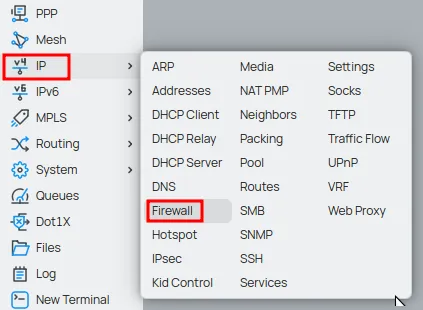
- In the main Winbox menu, located on the left side of the screen, click on “IP” and then select “Firewall”. This action will open the Firewall settings window.
Creating the Filter Rule (Allowing Traffic)
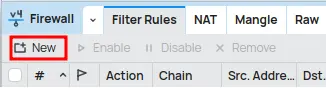
In the Firewall window, select the Filter Rules tab.
Click the “New” or “+” (Add New Rule) button to create a new filter rule.
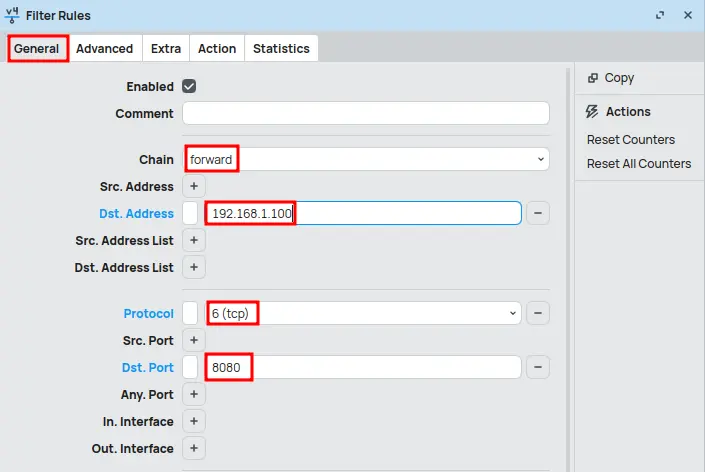
In the General tab of the new rule:
- Chain: Select forward. This chain is used for packets that are being forwarded through the router (from WAN to LAN, in this case).
- Protocol: Select the same protocol used in the NAT rule. In our example, tcp.
- Dst. Port: Enter the destination port that external traffic will use to access your service. In our example, 8080.
- Dst. Address: (Optional, but recommended) Enter the internal IP address of the server or device to which the traffic will be redirected. In our example, 192.168.1.100. This ensures that the rule applies only to traffic destined for that specific IP.
- In. Interface: (Optional, but recommended) Select the input interface through which external traffic will arrive (usually your WAN/Internet interface).
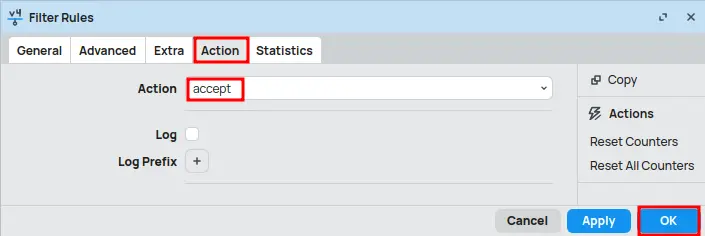
In the Action tab:
- Action: Select accept. This action allows the corresponding traffic to pass through the firewall.
Click OK to save the filter rule.
Other Common Ports That Frequently Need to Be Opened
| Port(s) | Protocol(s) | Service / Application Description |
| 80, 443 | TCP | Web Servers (HTTP e HTTPS) |
| 21 | TCP | FTP (File Transfer Protocol) |
| 22 | TCP | SSH (Secure Shell) |
| 23 | TCP | Telnet (Avoid use, insecure) |
| 25 | TCP | SMTP (Email Sending) |
| 110 | TCP | POP3 (Email Receiving) |
| 143 | TCP | IMAP (Email Receiving) |
| 3389 | TCP | Remote Desktop Protocol (RDP) |
| 554 | TCP | RTSP (Real Time Streaming Protocol) for IP cameras |
| 25565 | TCP | Servidor Minecraft |
| 8080, 8081 | TCP | Alternative Web Interfaces / Proxies |
| 500, 4500 | UDP | IKE/IPsec (VPN) |
| 1723 | TCP | PPTP (VPN) |
It is important to note that port opening should be done with caution and always following good security practices.
Conclusion
Opening ports in the MikroTik firewall using Winbox is a fundamental process to allow internal services to communicate with the outside world. By understanding the concepts of NAT (especially Dst-NAT) and the importance of the order of filter rules, you can configure your router efficiently and securely. Always remember to apply good security practices to protect your network from unwanted access and maintain the integrity of your data. With this guide, you have the necessary tools to perform this task with confidence and knowledge.
Visit the EMNews blog and stay up-to-date with the latest news, analyses, and trends in the world of technology and telecommunications!