Wi-Fi 6, also known as 802.11ax, represents the latest evolution in wireless network technologies, promising to revolutionize how we connect. With the growing demand for high-speed connectivity and the proliferation of connected devices, the need for more efficient and robust networks has never been more critical. This comprehensive guide explores how to configure WiFi 6 on Mikrotik equipment, a brand renowned for its flexibility and performance in network solutions. We will cover everything from the fundamental concepts of Wi-Fi 6 to a detailed step-by-step configuration, ensuring you can maximize the potential of your wireless network.
What is Wi-Fi 6 on Mikrotik and Its Benefits?
Wi-Fi 6 is not just about faster speeds; it was designed to improve overall network efficiency, especially in environments with many connected devices. Compared to its predecessor, Wi-Fi 5 (802.11ac), Wi-Fi 6 offers a series of significant enhancements that translate into a superior user experience.
Key Features and Advantages of WiFi 6 on Mikrotik:
- Higher Data Transfer Speed: Although the main focus is not solely on theoretical maximum speed, Wi-Fi 6 can achieve higher data rates, especially in multi-user scenarios, thanks to technologies like 1024-QAM.
- Better Performance in Dense Environments: In locations with many Wi-Fi devices (such as offices, airports, or homes with many smart gadgets), Wi-Fi 6 uses technologies like OFDMA (Orthogonal Frequency Division Multiple Access) and MU-MIMO (Multi-User, Multiple-Input, Multiple-Output) to manage traffic more efficiently. This allows the access point to communicate with multiple devices simultaneously, reducing latency and improving the overall experience.
- Greater Energy Efficiency: Target Wake Time (TWT) is a feature that allows devices to negotiate when and how often they will wake up to send or receive data. This extends the battery life of client devices, such as smartphones and IoT devices.
- Enhanced Security: Wi-Fi 6 requires the use of the WPA3 security protocol, which offers more robust encryption and protection against brute-force attacks, making your network more secure.
- Lower Latency: The combination of OFDMA and TWT results in significantly lower latency, which is crucial for time-sensitive applications such as online gaming and video conferencing.
Prerequisites for Configuring WiFi 6 on Mikrotik
- Mikrotik Router Compatible with Wi-Fi 6 (802.11ax): Ensure that your Mikrotik equipment supports the Wi-Fi 6 standard. Models such as hAP ax2, hAP ax3, Chateau AX, and others in the AX line are compatible. Check your device’s specifications on the official Mikrotik website.
- Updated RouterOS: It is crucial that your RouterOS is version 7.13 or higher, as specific configurations for Wi-Fi 6 (Wave2) were introduced starting from this version. You can check and update your RouterOS via Winbox or the web interface.
- Access to Winbox or Web Interface: You will need administrative access to your Mikrotik router, either through the Winbox application (for Windows) or via the web interface (WebFig) using a browser.
- Basic Network Knowledge: Familiarity with network concepts such as IP, DHCP, SSID, and Wi-Fi security will be helpful to understand and apply the configurations.
Step-by-Step Wi-Fi 6 Configuration on Mikrotik
This guide details the configuration of Wi-Fi 6 on a Mikrotik device, using Winbox as the access tool. The steps may vary slightly depending on your router model and the exact RouterOS version, but the general logic remains the same.
1. Connecting to Mikrotik
Open Winbox and connect to your Mikrotik router using the IP address, login, and password. If it’s your first time, you can use the MAC address to connect and configure an IP.
2.Accessing the Wi-Fi Menu
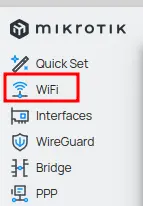
In the left sidebar menu of Winbox, locate and click on the “Wi-Fi” option. This option was introduced in RouterOS 7.13 to manage Wi-Fi 5 wave2 and newer interfaces.
3. Selecting the Wireless Interface
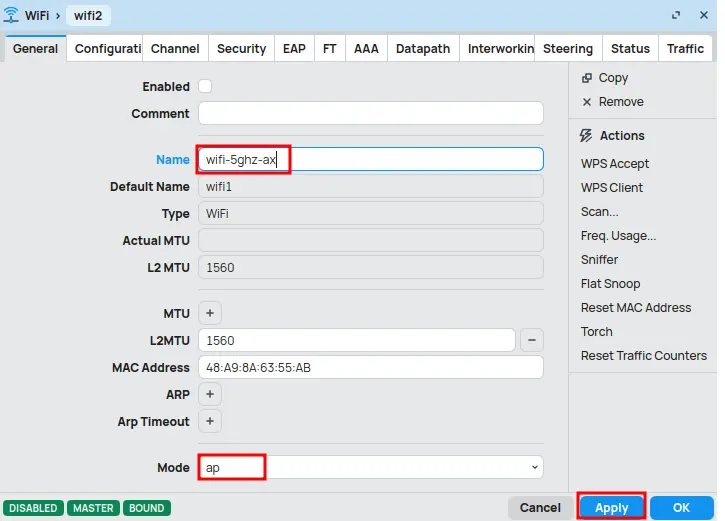
In the “Wi-Fi” window, you will see the available wireless interfaces (e.g., wifi2). Double-click on the interface you want to configure to open its properties.

4. “General” Tab Settings
In the “General” tab:
- Name: Define an identification name for the interface (e.g., wifi-5ghz-ax).
- Mode: Select the operating mode. For an access point (AP), the most common mode is “ap”.
Click “Apply” to apply the changes.
5.“Configuration” Tab Settings
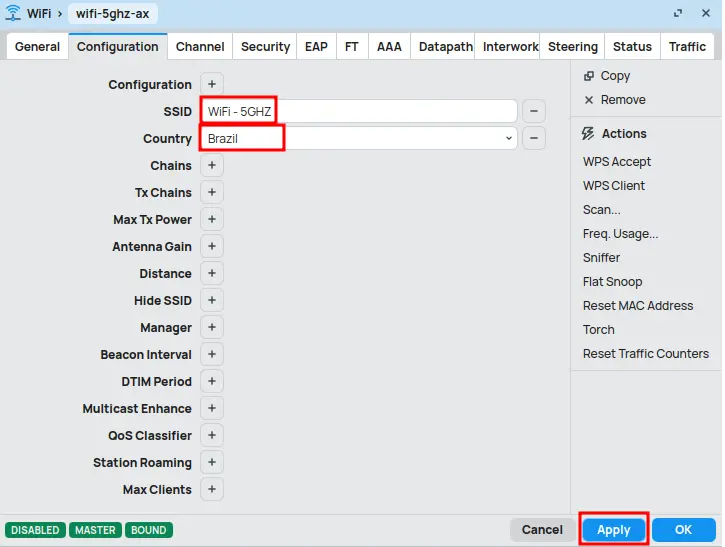
In the “Configuration” tab:
- SSID: Define the name of your Wi-Fi network (e.g., WiFi – 5GHZ). This is the name that will appear to users.
- Country: Select your country (e.g., Brazil). This setting is crucial to ensure that frequencies and transmission powers comply with local regulations.
Click “Apply“.
6. “Channel” Tab Settings
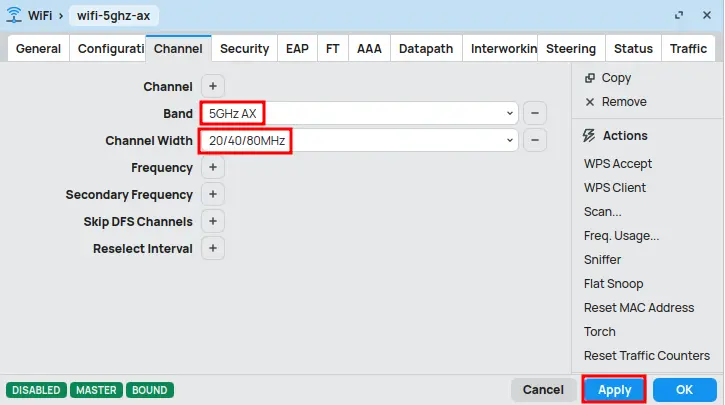
In the “Channel” tab:
- Band: Choose the frequency band. For Wi-Fi 6, select “5GHz AX” or “2.4GHz AX”, depending on the interface you are configuring.
- Channel Width: Select the channel width. To maximize Wi-Fi 6 performance, you can choose “20/40/80MHz” in the 5GHz band. For 2.4GHz, “20/40MHz” is common.
Click “Apply“.
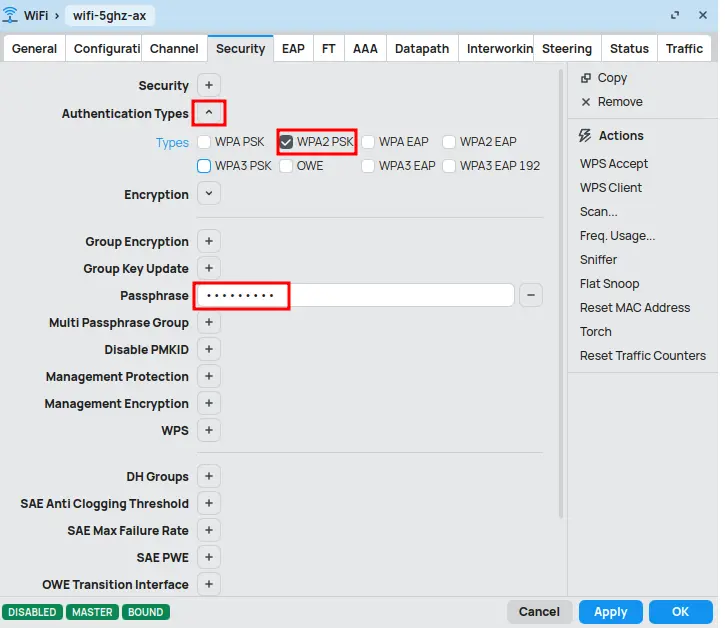
7.“Security” Tab Settings
In the “Security” tab:
- Authentication Types: Expand this menu and select the security type. For Wi-Fi 6, it is highly recommended to use “WPA2 PSK” or, ideally, “WPA3 PSK” if your device and clients support it.
- Passphrase: Create a strong password, combining uppercase and lowercase letters, numbers, and special characters. Avoid easily guessable passwords.
Click “OK”.
After following these steps, your Mikrotik will be configured to operate with Wi-Fi 6, offering the benefits of higher speed and efficiency. Remember that the RouterOS version and hardware model may influence the available options.
Conclusion
Configuring Wi-Fi 6 on Mikrotik devices is a strategic step to modernize your network infrastructure, offering superior speeds, lower latency, and enhanced capacity to handle multiple devices in dense environments. By following this detailed guide, you will be able to implement and optimize your Wi-Fi 6 network, ensuring robust and efficient connectivity. Remember that regular maintenance and updates are essential to sustain your network’s performance and security. With Wi-Fi 6 and Mikrotik’s flexibility, you will be prepared for the challenges of future connectivity.
Visit the EMNews blog and stay up-to-date with the latest news, analyses, and trends in the world of technology and telecommunications!