This comprehensive technical guide explores the MikroTik default password, detailing the initial access process for new or restored devices and the critical importance of credential management for network security. We will cover access methods, security guidelines from the first boot, and tips for optimizing your MikroTik device.
MikroTik Default Credentials and First Access
When setting up a MikroTik device for the first time, or after a factory reset, it is essential to understand the default credentials. Initial access to a MikroTik requires identifying the username and password, which may vary depending on the RouterOS version and equipment model:
- Legacy Models and Restored Devices (without configuration): Generally, the default user is admin and the password is empty (no password). Simply type admin in the username field and leave the password field blank.
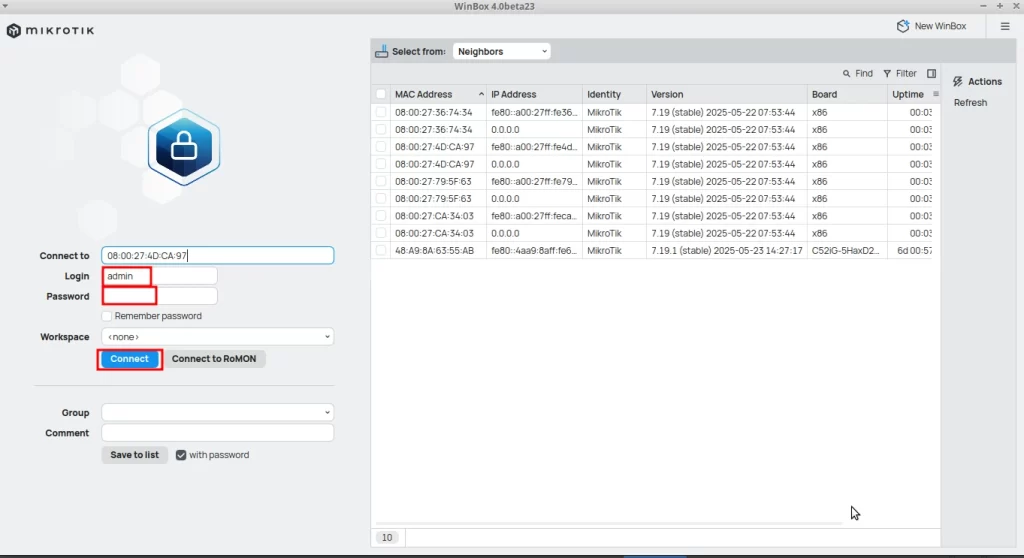
For this configuration scenario, Winbox version 4 was used, but the steps are similar for Winbox version 3.
- Current Models (Manufactured from 2022/2023): To enhance security, newer models come with a unique factory password for each unit. This password is usually found on physical labels on the equipment, in the original packaging, or in the quick start guide. It is crucial to check these sources for the correct password.
In cases of restoration via Netinstall without preserving configurations, the device may revert to the legacy default (admin user without password).
MikroTik Access Methods
There are several ways to access your MikroTik router for initial configuration and management:
- WinBox: WinBox is a proprietary MikroTik graphical tool, highly recommended for managing your devices. Download the official WinBox version from the MikroTik website. Connect your computer to a LAN port of the MikroTik device. In WinBox, use the ‘Neighbors’ tab to detect the device via MAC Address. Enter the admin user and the corresponding password (leave blank for legacy or restored models, or use the factory password for current models). Click “Connect” to establish the connection.
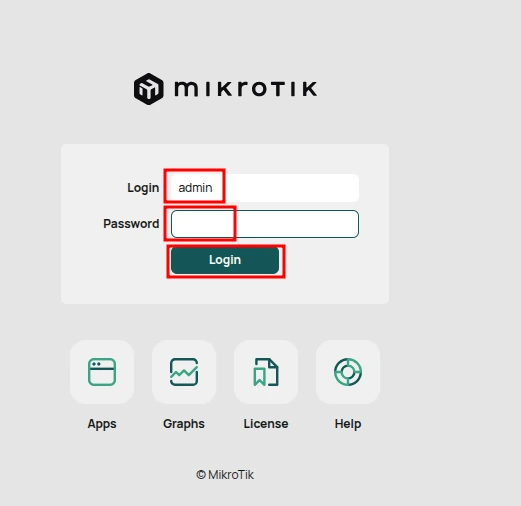
- WebFig (Web Interface): The WebFig interface allows access and management of MikroTik through a web browser. Connect your computer to a LAN port of the MikroTik. Open your browser and access the MikroTik default IP (the most common is 192.168.88.1). On the login page, enter the admin user and password (empty or factory). This interface is intuitive and offers most of the WinBox functionalities.
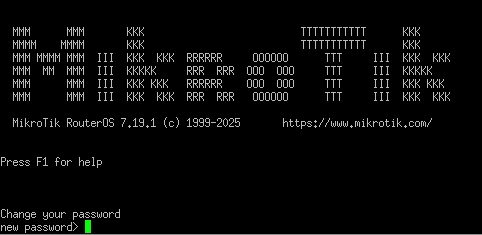
- CLI (Command Line Interface) via SSH/Telnet: For more advanced users, command-line access offers full control over the device. You can use SSH clients (like PuTTY) or Telnet to connect to the MikroTik IP. The default user is admin and the password is the same used in WinBox/WebFig. The CLI is powerful for automation and detailed configurations.
The Imperative Change of MikroTik Default Password for Network Security
Keeping default credentials on any network device is one of the biggest security vulnerabilities. For MikroTik, immediately changing the default password after the first login is a crucial and non-negotiable step to protect your network. Ignoring this step exposes your system to significant risks, including unauthorized access, compromise of critical configurations (such as firewall, VPN, QoS), and sensitive data, in addition to mitigating botnet attacks, malware, and other cyber threats.
Procedure to Change Password in MikroTik:
It is highly recommended to set a robust and unique password, combining uppercase and lowercase letters, numbers, and symbols.
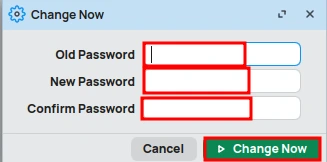
Via WinBox: Navigate to System -> Password.
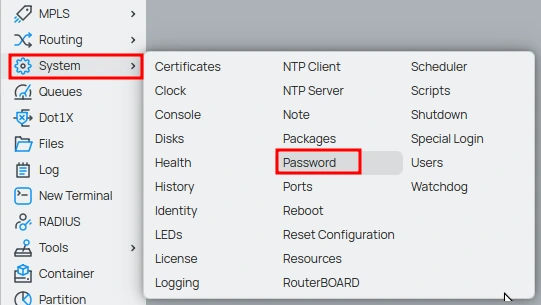
In the ‘Old Password’ field, enter the current password (empty or factory). In the ‘New Password’ and ‘Confirm New Password’ fields, define and confirm your new strong password.
Click “Change”.
Via WebFig: Access the WebFig interface and go to System -> Password. Fill in the ‘Old Password’, ‘New Password’, and ‘Confirm New Password’ fields as necessary. Click “Change Password”.
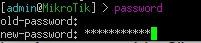
Via CLI (Terminal/SSH): After logging in, execute the command password. The system will guide you to enter the old password, followed by the new password and its confirmation.
Make sure the new password is complex and difficult to guess.
Access Recovery: What to Do with a Forgotten Password?
If your MikroTik password is lost or forgotten, the most common solution is a factory reset. This process will erase all custom configurations, returning the device to its original factory state (with the MikroTik default password):
- Disconnect power from the MikroTik device.
- Locate and press the physical reset button on your router (location may vary by model).
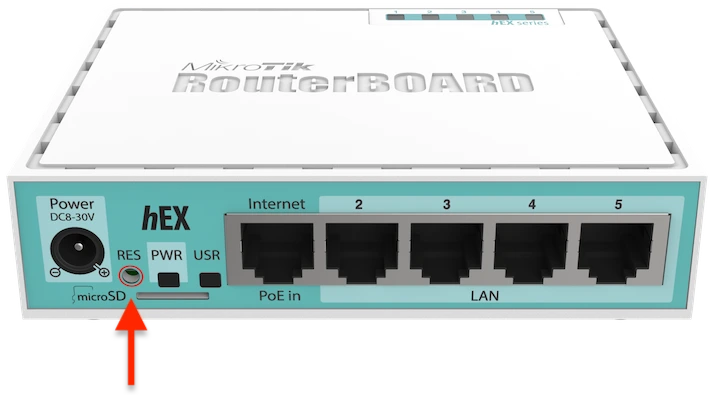
- With the reset button pressed, reconnect power to the device.
- Keep the button pressed until the USR/ACT LED (or a similar LED indicating activity) starts flashing.
- Release the reset button.
After this procedure, the device will restart with factory settings. Remember that all custom configurations will be lost. Therefore, the practice of regularly backing up your MikroTik configurations is essential to avoid data and time loss in case of restoration. Netinstall is a more advanced alternative for complete RouterOS reinstallation, useful in cases of software corruption.
Conclusion: MikroTik Default Password and the Foundation of Network Security
Credential management, starting with the MikroTik default password, is the cornerstone of security in any network based on MikroTik equipment. Immediately changing the password to a strong credential and maintaining regular backups of configurations are fundamental practices to mitigate risks, protect your data, and preserve the integrity and functionality of your equipment.
Prioritize security from the first access to ensure a robust and reliable network infrastructure.
Discover the EMNews blog and stay updated with the latest news, insights, and trends in the world of technology and telecommunications!