In today’s digital landscape, understanding how the internet works is more than a curiosity – it’s a necessity. A key piece of this puzzle is the IP address (Internet Protocol), the unique identity of your device on the network. Knowing “what is my IP” and how it operates is fundamental for your online security, privacy, and even for solving connection problems.
This complete guide was created to demystify the concept of an IP address, explaining its function, the different types (public and private), and, most importantly, how you can discover your own network address quickly and easily. Get ready to navigate the world of IPs with clarity and practicality!
What is an My IP Address and Why is it Important?
An IP address is, in simple terms, the “postal address” of your device on the internet or a local network. It is a unique numerical label assigned to each device – be it your computer, smartphone, tablet, router, or even your smart TV – that connects to a network. The main function of an IP is to allow these devices to communicate with each other, exchanging data in an organized and efficient manner.
Imagine the internet as a vast network of roads. For any information (data) to reach its correct destination, it needs a precise address. The network address provides this exact location, ensuring that the content you are looking for (like a YouTube video or a news page) reaches your device, and that your sent information (like an email) reaches the correct recipient.
Technically, the most common IPs are IPv4 (four blocks of numbers, such as 192.168.1.1) and IPv6 (a longer alphanumeric sequence, created to support the growing number of connected devices). These addresses are not random; they are carefully managed and distributed by global organizations such as IANA and ICANN, which ensure the uniqueness and organization of each network address on the internet.
How Does the My IP Address Work in Practice?
Understanding how an IP address works can seem complex, but it is based on a set of rules that govern data communication on the internet. When your device connects to the internet, it does not do so directly. First, it connects to a network (usually provided by your Internet Service Provider – ISP), which then grants access to the internet. It is your ISP that assigns a network address to your device.
All data traffic from your online activity passes through your ISP, which routes it back to you using your IP address. It is important to know that your network address can change. For example, a simple restart of your modem or router can result in a new IP. Additionally, when you use your device in another location (such as a cafe, airport, or hotel), you will receive a new temporary IP address, assigned by the ISP of that network.
This dynamic system ensures that, regardless of your location, your device can be identified and communicate with other devices and servers on the internet, maintaining the fluidity of your browsing.
Types of IP Addresses Public vs. Private
To better understand “what is my IP,” it is crucial to differentiate between the two main types of network addresses, each with a specific function in the network architecture.
Private IP Address: The Identity on Your Local Network
Every device connected to your local network (whether at home or in the office) receives a private network address. This includes your computer, smartphone, tablet, printer, and other smart devices. Your router is responsible for assigning and managing these private IPs, ensuring that each device can communicate with others within the same network. It is important to note that these addresses are not visible or routable on the public internet; they are unique only within your local network.
Examples of private IP ranges:
- 10.0.0.0 to 10.255.255.255
- 172.16.0.0 to 172.31.255.255
- 192.168.0.0 to 192.168.255.255.
Public IP Address: Your Gateway to the Internet
The public IP address is the primary address of your network on the internet. It is assigned to your router by your Internet Service Provider (ISP). This is the address that other devices and servers on the internet use to communicate with your network. Think of it as your home address in the real world – it is the entry point for your entire network and for the traffic that reaches you.
Public IPs can be:
•Dynamic: Most ISPs assign dynamic IP addresses. This means they can change periodically (for example, when restarting the router or after a certain period of time). This practice helps ISPs manage their IP resources more efficiently and provides an extra layer of security, making continuous tracking by cybercriminals more difficult.
•Static: In contrast, a static IP address remains the same. While most home users do not need a static IP, it is essential for businesses that host their own servers, as it ensures that their websites and services are always accessible at the same address, without interruptions.
How to Find Your Public IP Address (It’s Easier Than You Think!)
Finding your public IP address is an extremely simple process, as it is the identification of your network to the rest of the internet. There are several online tools that can help you find this information quickly:
- Specialized Websites: Platforms like meuip.com.br, whatismyipaddress.com, or ifconfig.me/ip are specifically designed to display your public IP. Just access one of these sites and your IP address will be prominently displayed on the page.
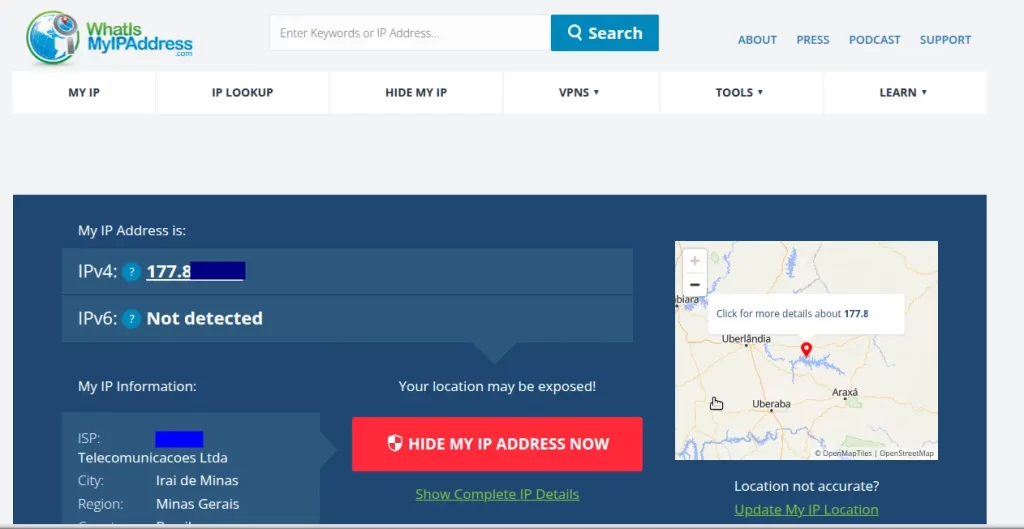
These methods work because, when accessing any website on the internet, your router sends your public IP so that communication can be established. The tools and Google simply capture and display this information that is already being publicly transmitted.
How to Find Your Private IP Address (Step-by-Step)
The private IP address is assigned to devices within your local network by your router. Unlike the public IP, it is not directly visible on the internet. To find it, the methods vary slightly depending on the operating system you use.
On Windows:
- Open Command Prompt: You can do this by typing “cmd” in the Windows search bar and pressing Enter.
- Type the Command: In the Command Prompt window, type ipconfig and press Enter.
- Locate your IP: Look for “IPv4 Address” in the section of your network connection (usually “Ethernet Adapter” or “WLAN Adapter”). The displayed number is your private IP.
On macOS:
- Access System Preferences: Click the apple icon in the top left corner of the screen and select “System Preferences.”
- Go to Network: Click the “Network” icon.
- Select your Connection: On the left side, select the active network connection (Wi-Fi or Ethernet).
- See your IP: Your private IP address will be displayed below the connection status.
On Linux:
- Open Terminal: You can use the shortcut Ctrl + Alt + T or search for “Terminal” in the applications menu.
- Type the Command: Type hostname -I (capital letter I) or ip addr show and press Enter.
- Find your IP: Your private network address will be listed in the output, usually associated with your network interface (e.g., eth0 for Ethernet, wlan0 for Wi-Fi).
Knowing your private IP is extremely useful for various tasks, such as configuring local networks, accessing specific devices connected to your network (like network printers or media servers), or troubleshooting internal connectivity problems.
Conclusion: Master My IP Knowledge
Understanding what an IP address is and how it works is a fundamental step for any internet user. Whether it’s to solve connection problems, set up a more efficient home network, or simply to gain a deeper understanding of the infrastructure that connects us to the digital world, knowledge about IPs is a powerful and accessible tool.
Now that you know the crucial difference between public and private network addresses, and the various practical ways to discover them, you are better prepared to navigate the online environment with confidence and knowledge. Remember: your IP address is an essential part of your digital identity on the network, and knowing how to manage it is an important step towards a safer, more efficient, and informed online experience.
Discover the EMNews blog and stay updated with the latest news, insights, and trends in the world of technology and telecommunications!