Want to ensure your customers browse seamlessly and optimize public IP usage? NAT Masquerade on MikroTik is the solution you need! It allows multiple devices on your internal network to share a single public IP to access the internet, saving resources and increasing security.
In this quick guide, we’ll get straight to the point and show you how to configure NAT Masquerade on MikroTik using Winbox. Get ready to simplify your network and take your customers’ connectivity to a new level!
What is NAT Masquerade on MikroTik and Why is it Crucial?
Imagine the following situation: you have an internal network with hundreds, perhaps thousands of devices, each with its own private IP address. For all these devices to access the internet, they need a public IP address. However, the number of public IPs is limited, and, let’s face it, it would be unfeasible and extremely expensive to assign a public IP to each client on your network. This is where NAT Masquerade comes in, an elegant and efficient solution to this challenge.
NAT Masquerade, also known as Source NAT (SNAT) with port overloading, allows multiple devices in a private network to share a single public IP address to access the internet. Basically, when a data packet leaves your internal network towards the internet, MikroTik changes the source IP address of the packet (the client’s private IP) to the public IP address of your MikroTik router. It also modifies the source port to ensure that when the internet server’s response returns, MikroTik knows exactly which internal device to forward the packet to. It’s as if the router is using a ‘mask’ to represent its entire network to the outside world, saving IPs and simplifying management.
Key Benefits:
- IP Address Savings: With the exhaustion of IPv4 addresses, Masquerade allows you to serve a large number of clients using a limited pool of public IPs. This translates into reduced operating costs and greater scalability for your network.
- Enhanced Security: By ‘hiding’ your network’s internal IPs, NAT Masquerade adds a layer of security. External devices cannot directly initiate connections with your clients’ private IPs, making attacks and unauthorized access more difficult.
- Network Simplification: IP management becomes much simpler. You don’t have to worry about assigning individual public IPs to each client, which speeds up new user activation and network maintenance.
- Universal Compatibility: Most internet services and applications expect users to connect from public IPs. Masquerade ensures your clients have unrestricted access to all web content, without compatibility issues. Do you see how NAT Masquerade is a true ally for the health and growth of your network? Now that we understand its importance, let’s prepare for the configurations!
For this configuration scenario, Winbox version 4 was used, but the steps are similar for Winbox version 3.
Configuring NAT Masquerade on MikroTik using Winbox: Simplified Step-by-Step
With Winbox open and connected to your MikroTik, follow these steps:
- In the left side menu of Winbox, click on IP.
- Then, click on Firewall.
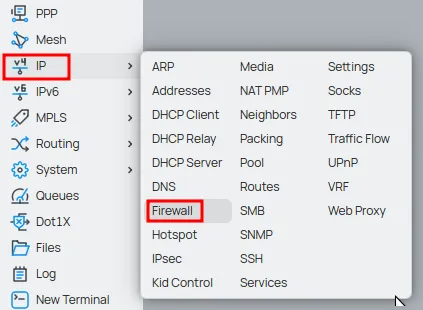
- Inside the ‘Firewall’ window, select the ‘NAT’ tab and click on ‘New’ or the ‘+’ button to add a new masquerade rule.

General Tab:
- Chain: Select srcnat (Source NAT). This option indicates that the rule will be applied to traffic leaving your network. Masquerade is a form of Source NAT, so this is the correct choice.
- Out. Interface: This is the interface of your MikroTik that is connected to the internet (your WAN). Select the correct interface from the dropdown list. For example, if your internet comes through ether1, select ether1. If you use PPPoE, select the corresponding PPPoE interface (e.g., pppoe-out1). It is crucial that this interface is correct, as it is through it that MikroTik will ‘masquerade’ the traffic.
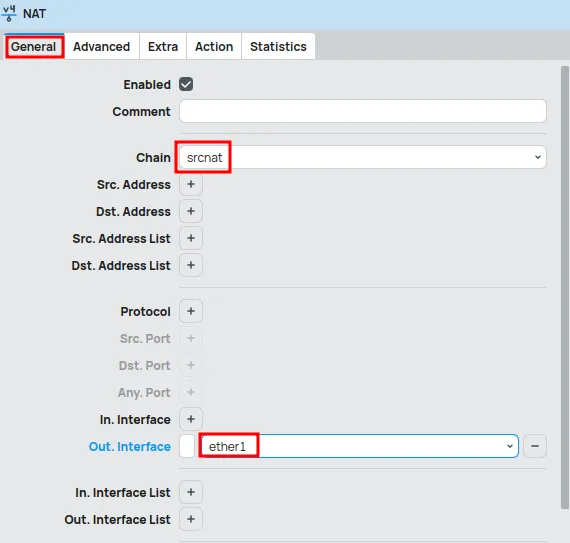
Action Tab:
- Action: In the Action field, select masquerade. This action instructs MikroTik to replace the source IP address of packets with the IP address of the outgoing interface (Out. Interface) and to manage ports so that return traffic is correctly directed.
Click OK.
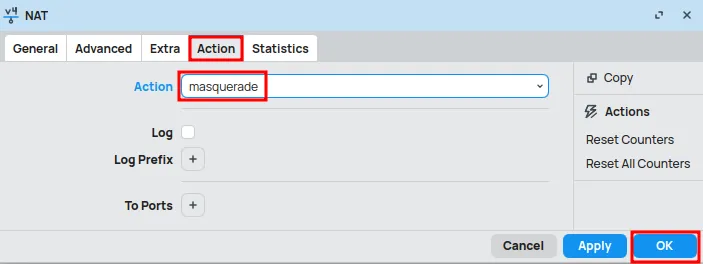
Congratulations! You have just configured NAT Masquerade on your MikroTik. But how do you know if everything is working perfectly? Let’s test!
Checking and Optimizing
Connectivity Test
The most basic and effective method. Try accessing the internet from a device connected to your internal network (LAN). If browsing is normal, it’s a great sign that Masquerade is doing its job.
Checking Active Connections on MikroTik
- In Winbox, go to IP > Firewall > Connections.
- In this window, you will see a list of all active connections passing through your router. If Masquerade is working, you should see connections originating from private IPs on your LAN being translated to your WAN’s public IP.
- Observe the Src. Address (source address) and Dst. Address (destination address) columns. You will see your LAN’s private IP as the source and your WAN’s public IP as the address being used to access the internet.
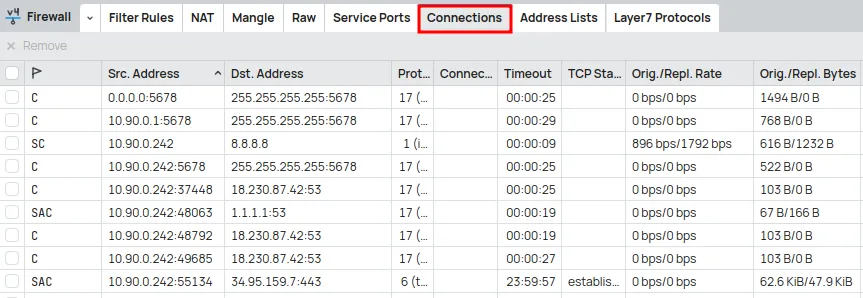
Checking NAT Masquerade Rule Counters in MikroTik
- Go back to IP > Firewall > NAT.
- Locate the Masquerade rule you created. Click on it and observe the Bytes and Packets columns. If Masquerade is active, these counters will be increasing, indicating that traffic is passing through this rule.

Conclusion: Take Your Network to the Next Level!
Mastering NAT Masquerade is essential for any provider. It saves IPs, increases security, and simplifies network management, ensuring a high-quality internet experience for your customers.
By mastering NAT Masquerade, you not only solve a technical problem, but also elevate the quality of the service you offer, ensuring a fluid and secure internet experience for your users. This translates into more satisfied customers and, consequently, into the growth of your provider.
Discover the EMNews blog and stay updated with the latest news, insights, and trends in the world of technology and telecommunications!