The Power of Site-to-Site L2TP/IPsec VPN
In the modern business landscape, secure connectivity between different geographic locations is a fundamental pillar for business continuity and operational efficiency. This is where Site-to-Site L2TP/IPSec VPNs (Point-to-Point) stand out.
A Site-to-Site L2TP/IPSec VPN establishes an encrypted and persistent communication tunnel between two distinct local networks (LANs), such as a company headquarters and its branch offices. Unlike Remote Access VPNs (Client-to-Site), which connect individual users to the corporate network, a Site-to-Site VPN connects routers or network gateways, allowing all devices on both networks to communicate as if they were in the same physical location.
Advantages of Site-to-Site L2TP/IPsec VPN
Implementing a Site-to-Site VPN offers crucial benefits to IT infrastructure:
| Advantage | Description |
|---|---|
| Enhanced Security | All traffic between networks is encrypted, protecting sensitive data from interception over public networks (Internet). |
| Transparent Communication | Enables access to network resources (servers, printers, systems) at any location, in a way that is transparent to the end user. |
| Cost Reduction | Eliminates the need for expensive dedicated lines (such as MPLS), using the existing Internet infrastructure. |
| Scalability | Makes it easy to add new branches to the corporate network quickly and efficiently. |
Premise: L2TP/IPsec VPN Server (Headquarters)
For the branch office to connect, the MikroTik router at the Headquarters must already be configured as an L2TP/IPsec server.
IMPORTANT: This article assumes that the Headquarters MikroTik is already configured as an L2TP/IPsec Server, following the base tutorial “Configuring L2TP IPSec on MikroTik with IP Cloud.”
Below is an example summary of the network settings used:
| Location | Function | Local Network (LAN) | VPN Server IP (HQ) | VPN IP Pool |
|---|---|---|---|---|
| Headquarters | VPN Server | 192.168.1.0/24 | Public IP (or IP Cloud) | 10.10.0.0/24 |
| Branch | VPN Client | 192.168.2.0/24 | – | – |
The IP assigned to the Branch MikroTik from the HQ pool will be 10.10.0.2.
Configuring the L2TP/IPsec VPN Client (Branch)
Configure the L2TP Client Interface (Branch)
This procedure creates the outbound VPN tunnel on the Branch router, connecting it to the Headquarters server.
- Open WinBox and connect to the Branch MikroTik router.
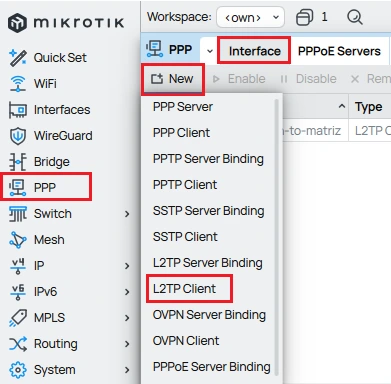
- Go to PPP.
- Click New (+).
- Select L2TP Client.
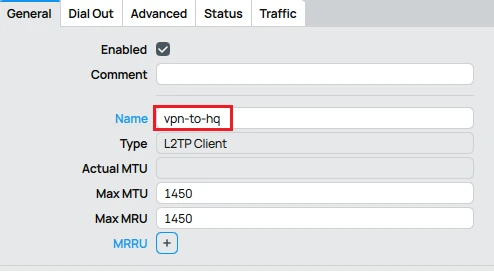
General tab:
- Name: Insert an identifier (example:
vpn-to-hq).
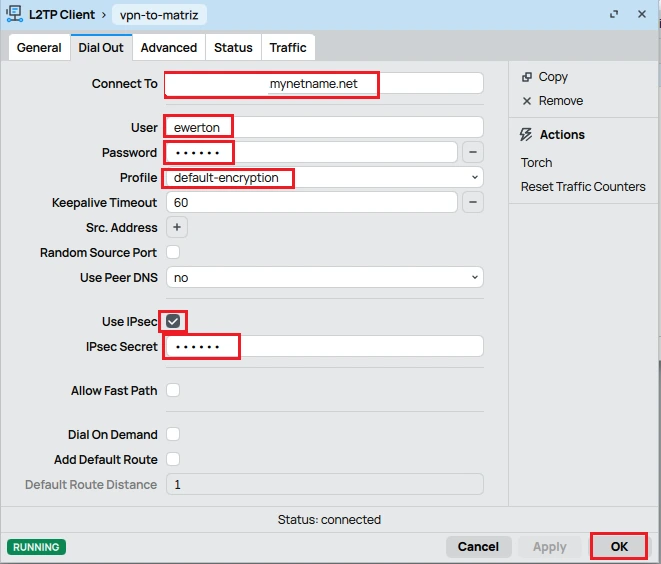
Dial Out tab:
- Connect To: Public IP or IP Cloud DNS of the Headquarters.
- User: The username created in Secrets.
- Password: The configured VPN password.
- Profile:
default-encryption(or custom). - Use IPSec: Enable.
- IPSec Secret: Enter the same PSK configured on the Headquarters router.
- Add Default Route: Leave disabled.
Click OK.
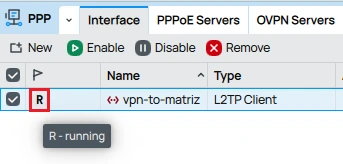
The interface should show as R (Running) if successful.
Configure Static Routing (Branch)
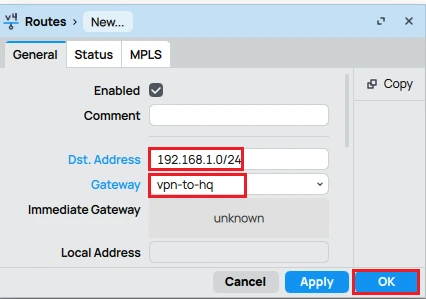
To allow devices on the Branch network (192.168.2.0/24) to access the Headquarters network (192.168.1.0/24), it is necessary to add a static route.
Refer to the article “Static Routing on Mikrotik: Complete Guide with Winbox”, which provides a step-by-step explanation on how to configure static routing in a simple and efficient way. Below, we present the main path in a summarized form.
On the Branch MikroTik (Client):
Go to IP > Routes.
In the Route List window, click the New button (or the + icon).
| Parameter | Value |
|---|---|
| Dst. Address | 192.168.1.0/24 (Destination network — represents the Headquarters LAN) |
| Gateway | vpn-to-hq (VPN interface used for the connection to the Headquarters) |
Click OK.
Configure Static Routing (Headquarters)
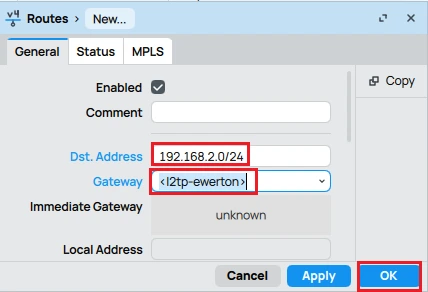
The Headquarters MikroTik needs to know how to route the traffic back to the Branch network (192.168.2.0/24).
On the Headquarters MikroTik (Server):
Go to IP > Routes.
Click New.
| Parameter | Value |
|---|---|
| Dst. Address | 192.168.2.0/24 (Destination network — represents the Branch LAN) |
| Gateway | l2tp-ewerton (VPN interface used for the connection to the Branch) |
Click OK.
Firewall Adjustments (Headquarters and Branch)
It is essential to ensure that local traffic between networks is not blocked by the firewall.
Headquarters MikroTik
Go to IP > Firewall.
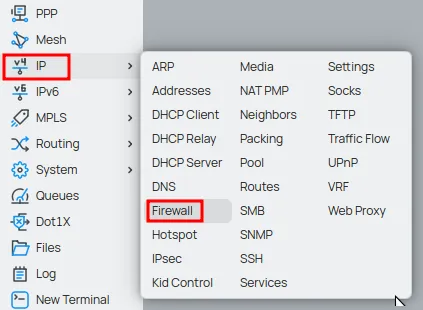
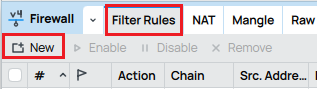
In the “Filter Rules” tab, all existing filter rules (if any) will be displayed.
To create a new rule in the MikroTik Firewall, click the “New” button or the “+” (add) icon to open the configuration window for the new rule.
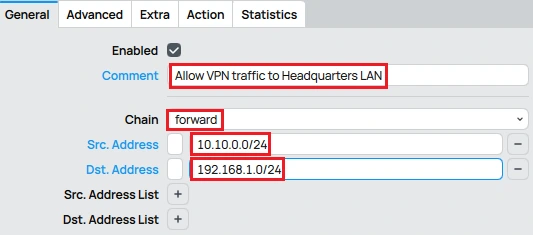
In the General tab:
- Comment: insert a descriptive comment to make it easier to identify the rule.
- Add a rule in the Chain forward field to allow traffic from the VPN network (Src. Address – 10.10.0.0/24) to the Headquarters local network (Dst. Address – 192.168.1.0/24).
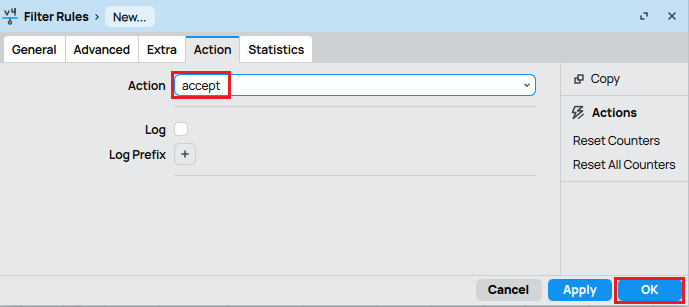
Action: select the accept option.
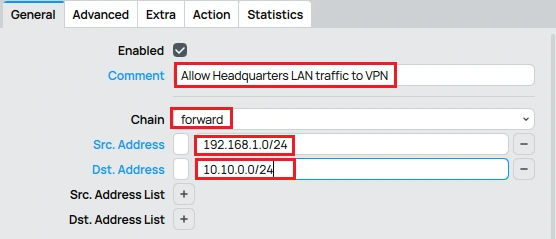
- Now add a rule in the Chain forward field to allow traffic from the Headquarters local network (Src. Address – 192.168.1.0/24) to the VPN local network (Dst. Address – 10.10.0.0/24).
Action: select the accept option.
Branch MikroTik
Go to IP > Firewall.
In the “Filter Rules” tab, click the “New” button or the “+” (add) icon to open the configuration window.
In the General tab:
- Comment: enter a descriptive comment to help identify the rule.
- Add a rule in the Chain: forward field to allow traffic from the VPN network (Src. Address – 10.10.0.0/24) to the Branch’s local network (Dst. Address – 192.168.2.0/24).
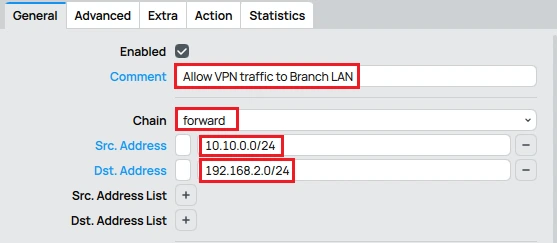
Action: select accept.
Now add a new rule in the Chain: forward field to allow traffic from the Branch network (Src. Address – 192.168.2.0/24) to the VPN network (Dst. Address – 10.10.0.0/24).
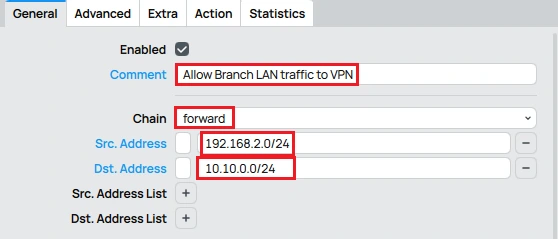
Action: select accept.Don’t miss any updates! Click the link below and join our WhatsApp channel to receive exclusive MikroTik articles, reviews, and news first-hand.
Conclusion: Secure and Efficient Connectivity with Site-to-Site L2TP/IPSec VPN
Configuring a Site-to-Site L2TP/IPsec VPN on MikroTik—using the Headquarters/Branch model—is a robust and cost-effective solution for connecting corporate networks. Ensuring correct server configuration, proper client setup, static routes, and firewall rules enables a unified and secure environment essential for companies with multiple locations.
Don’t miss any updates! Click the link below and join our WhatsApp channel to receive exclusive MikroTik articles, reviews, and news first-hand.
👉 https://whatsapp.com/channel/0029Va4pJbu47Xe79TIBxo1G
Visit the EMNews blog and stay up-to-date with the latest news, analyses, and trends in the world of technology and telecommunications!